Product Inventory
The Product Inventory (PI) interface of the IMS platform is specifically designed to manage and oversee all product-related operations. It provides a comprehensive set of tools and features that allow users to efficiently handle various aspects of product management, including adding new products, managing existing ones, and accessing detailed product information. The intuitive layout ensures that users can navigate through the platform with ease and perform their tasks effectively.
Menu Bar

- Clients: Manage client information.
- Billing Accounts: Handle billing account details.
- Products: Manage products in the inventory.
- Tasks: View and manage tasks (audit logs).
- User Profile: Displays the username of the active user, with options to check user roles and safely logout from the system by clicking on the user icon.
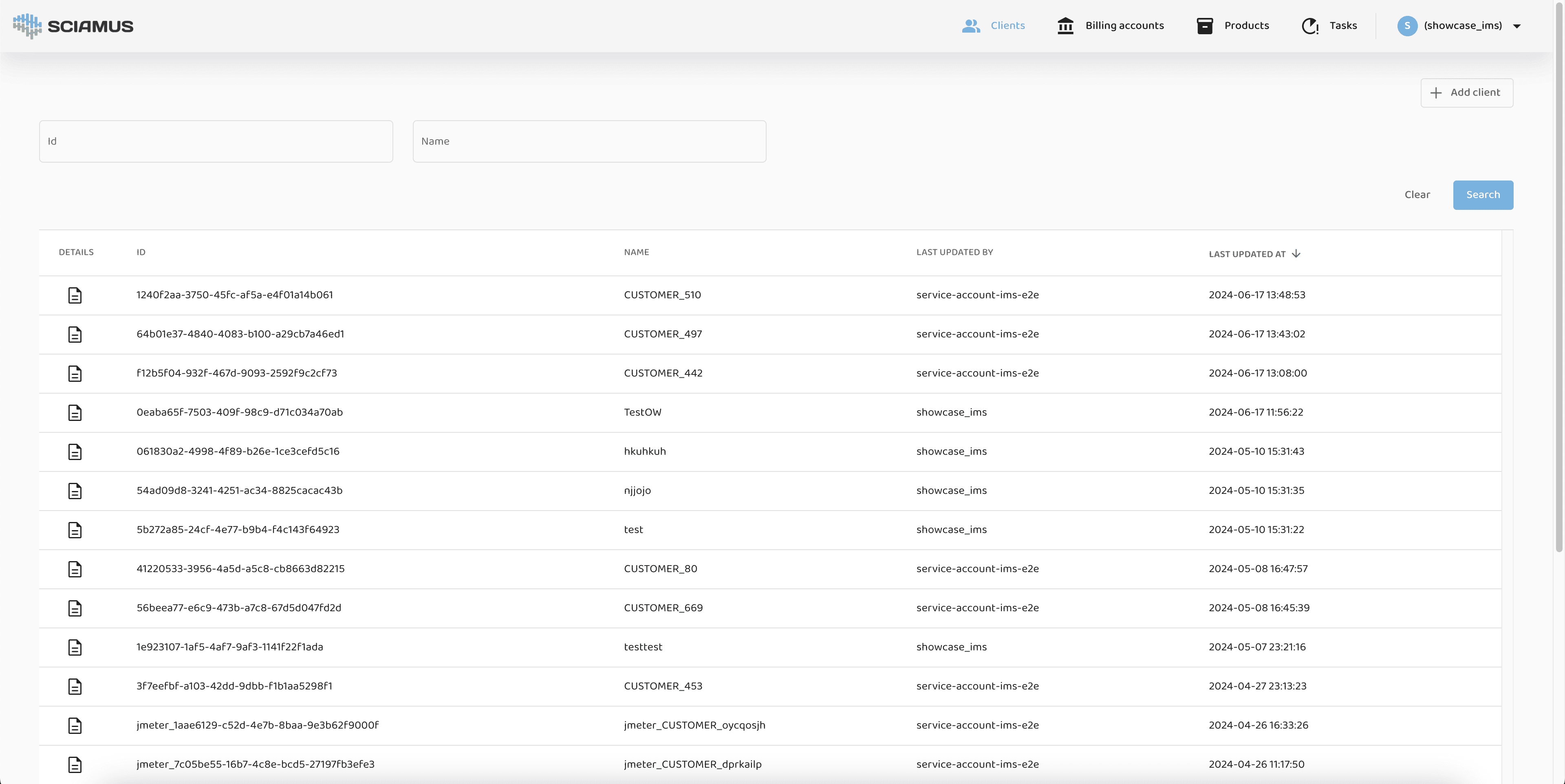
Clients
Clients View
This view allows users to browse all clients in the system. Users can search and filter the list by selected criteria using the "Search Pane", which includes fields such as ID and Name. Below the search pane is the "Results Table", which displays the filtered results.
- Clicking on column headers in the results table allows sorting by that field.
- The "Add Client" button opens the "Add Client" window to input necessary details for a new client.
- Clicking the icon in the "Details" column opens the "Client Details" window.
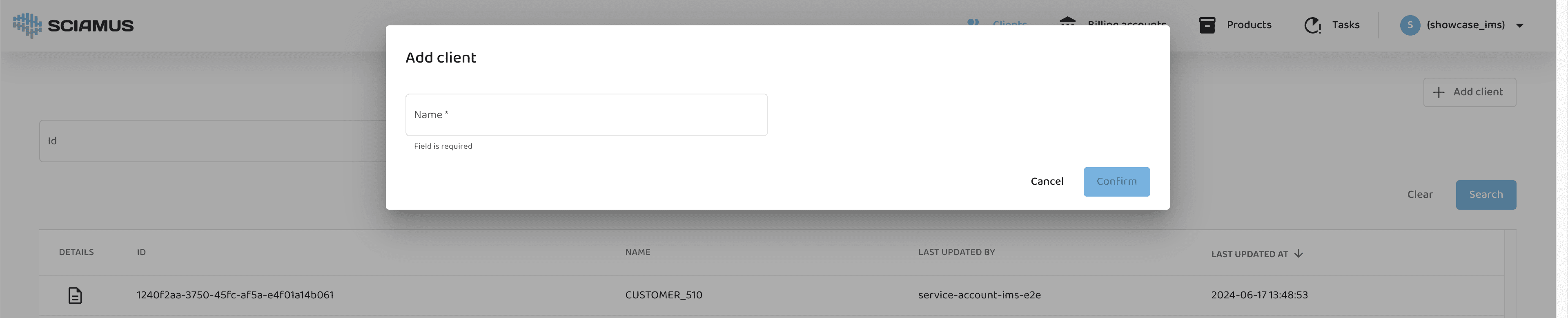
Add Client
The interface for adding a new client allows users to input necessary details.
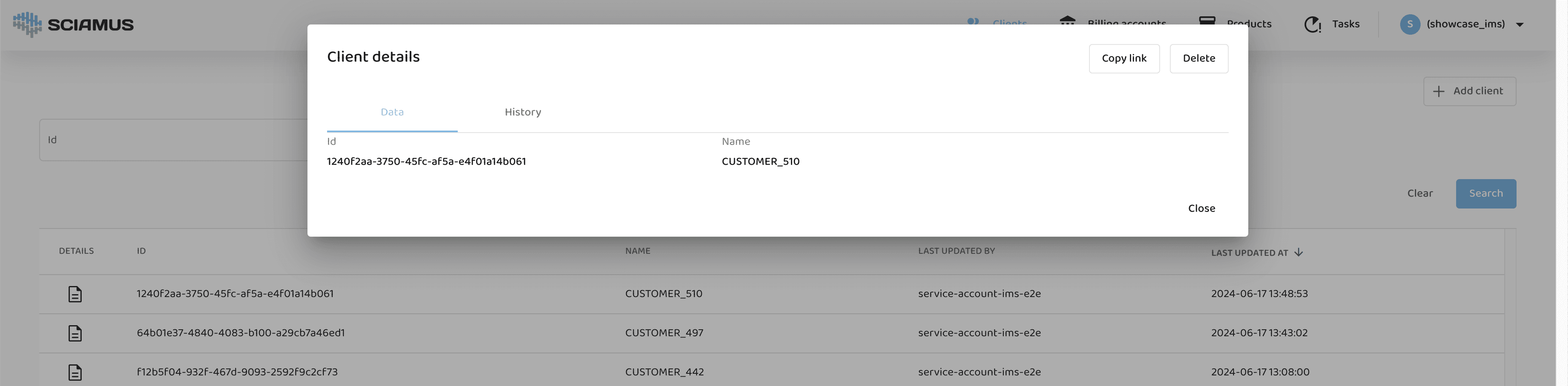
Client Details
Detailed view of client information, including history and current status. From this window, users can also delete the client.
Billing Accounts
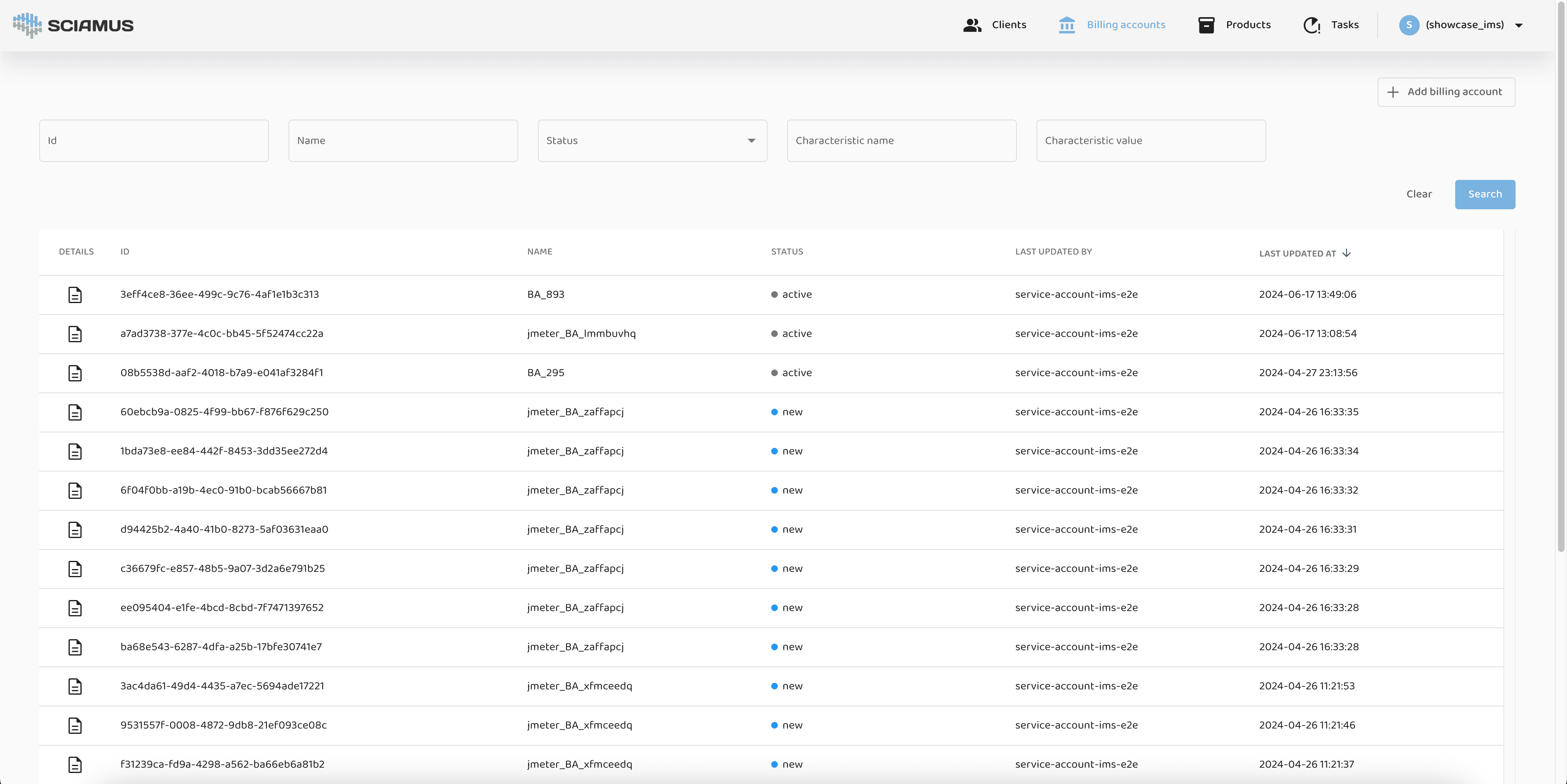
Billing Accounts View
This view allows users to browse all billing accounts in the system. Users can search and filter the list by selected criteria using the "Search Pane", which includes fields such as ID, Name, Status, Characteristic Name, and Characteristic Value. Some fields offer dropdown selections. Below the search pane is the "Results Table", which displays the filtered results.
- Clicking on column headers in the results table allows sorting by that field.
- The "Add Billing Account" button opens the "Add Billing Account" window to input necessary details for a new billing account.
- Clicking the icon in the "Details" column opens the "Billing Account Details" window.
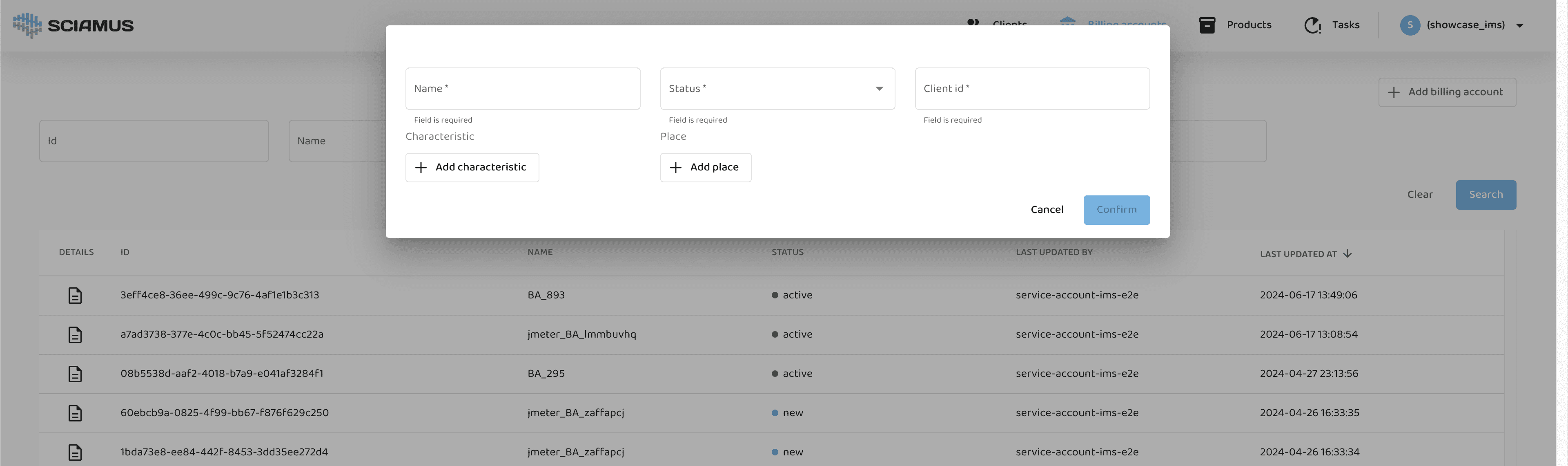
Add Billing Account
The interface for adding a new billing account allows users to input necessary details.
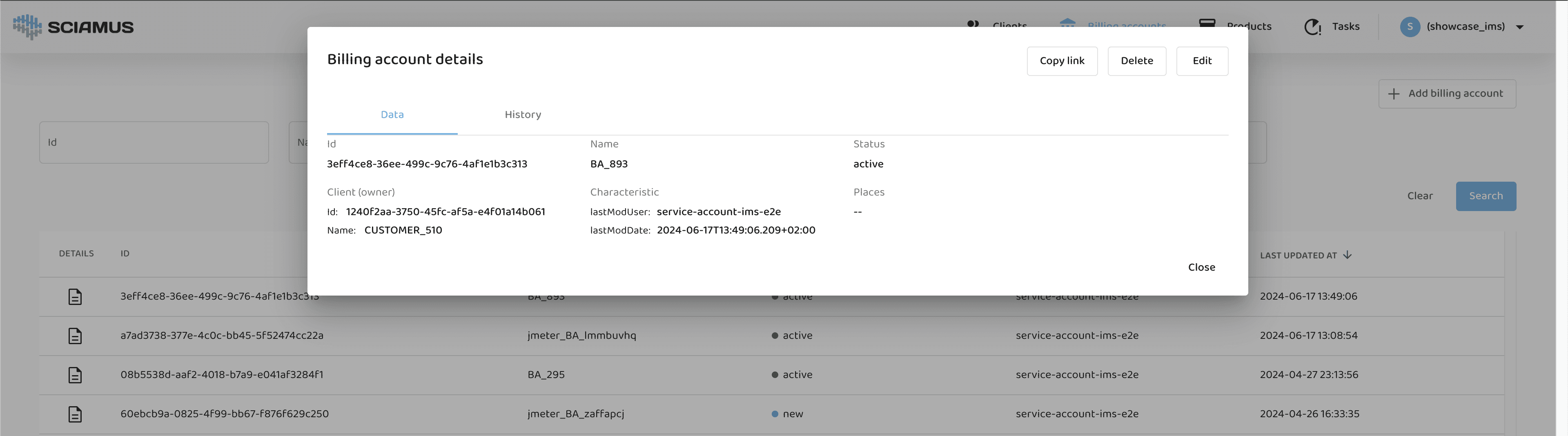
Billing Account Details
Detailed view of billing account information, including history and current status. This window also has buttons to delete or edit the billing account.
Products
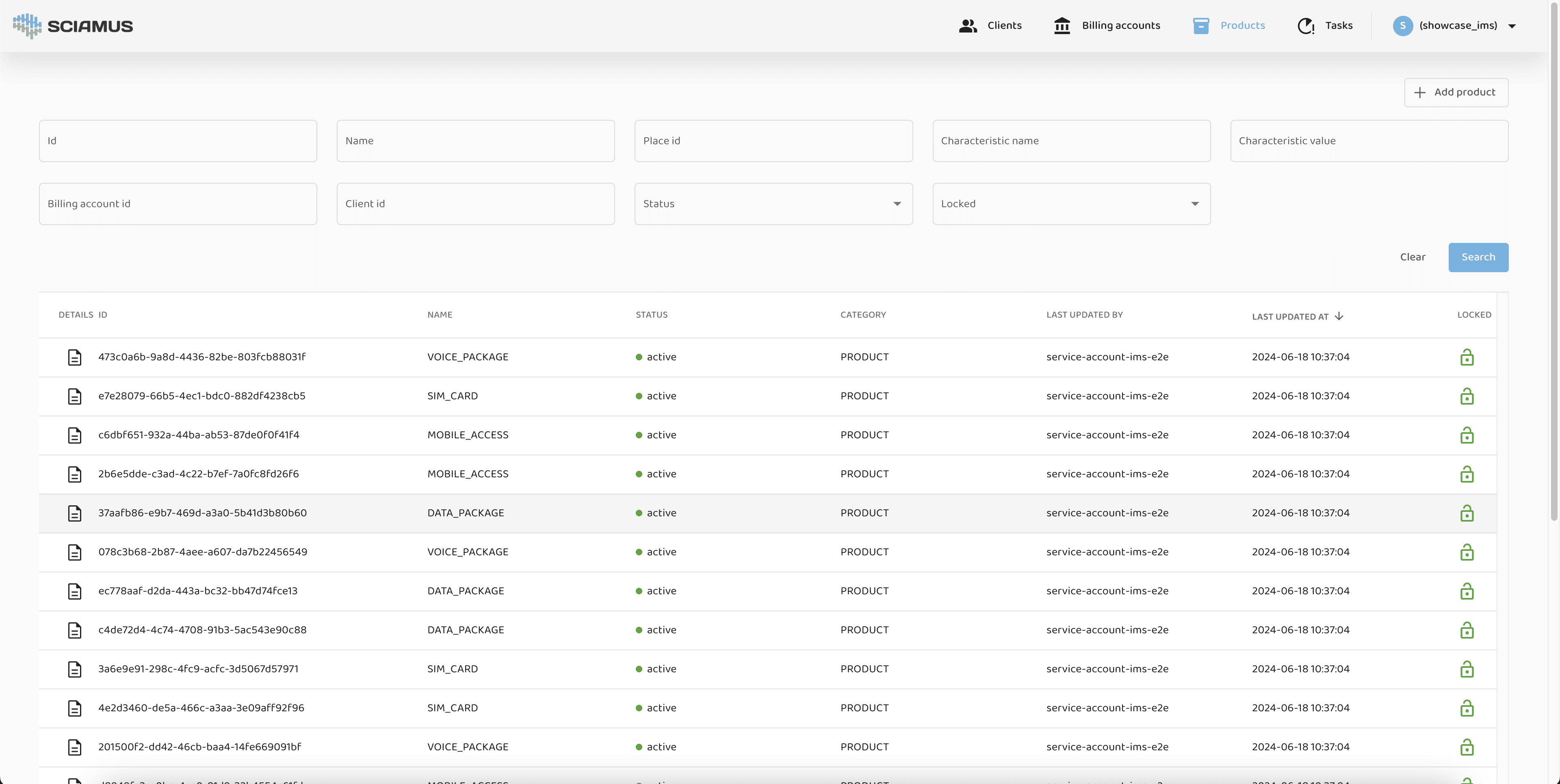
Products View
This view allows users to browse all products in the system. Users can search and filter the list by selected criteria using the "Search Pane", which includes fields such as ID, Name, Place ID, Client ID, Status (dropdown), and Locked (dropdown). Below the search pane is the "Results Table", which displays the filtered results.
- Clicking on column headers in the results table allows sorting by that field.
- The "Add Product" button opens the "Add Product" window to input necessary details for a new product.
- Clicking the icon in the "Details" column opens the "Product Details" window.
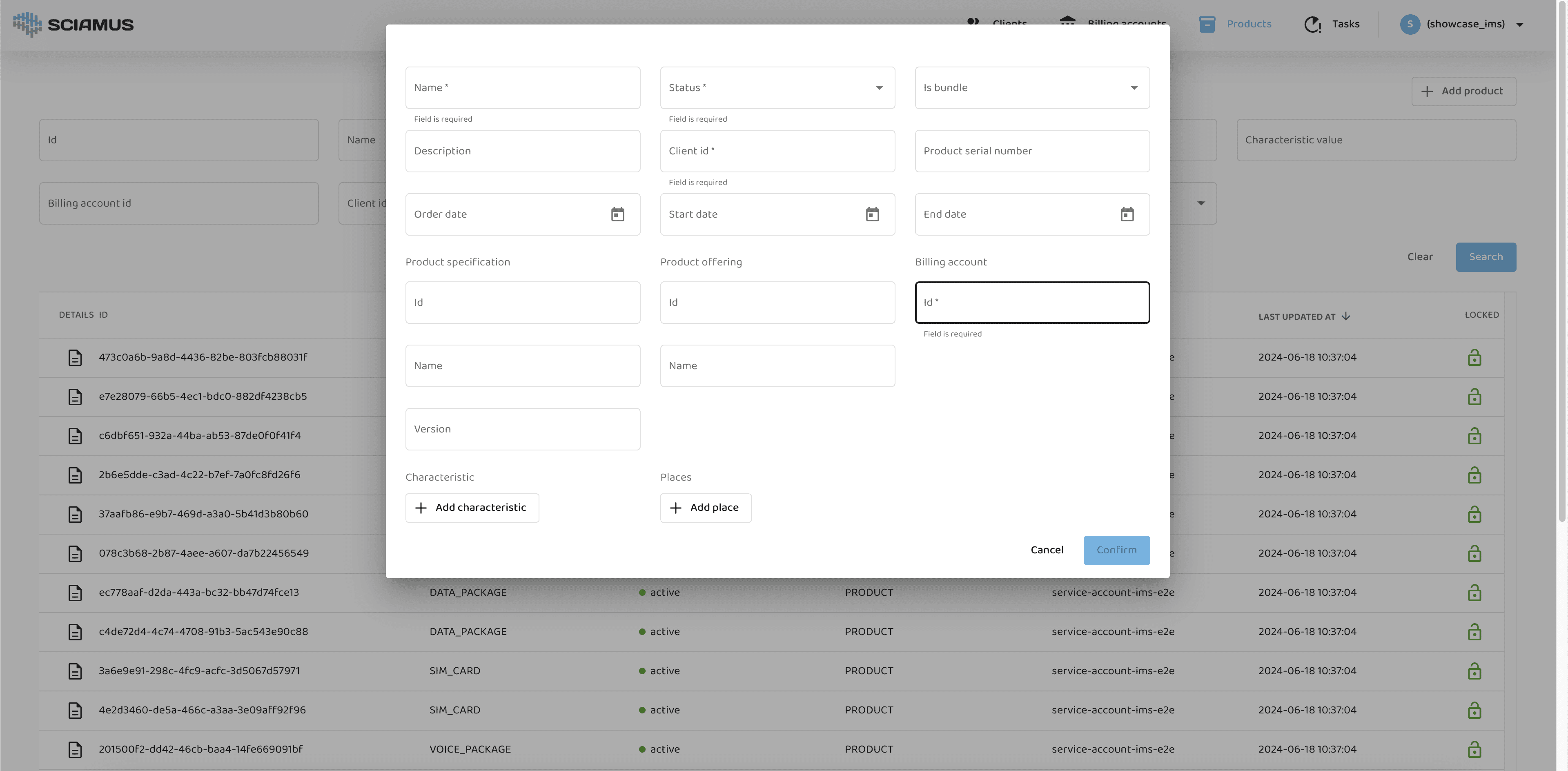
Add Product
The interface for adding a new product allows users to input necessary details.
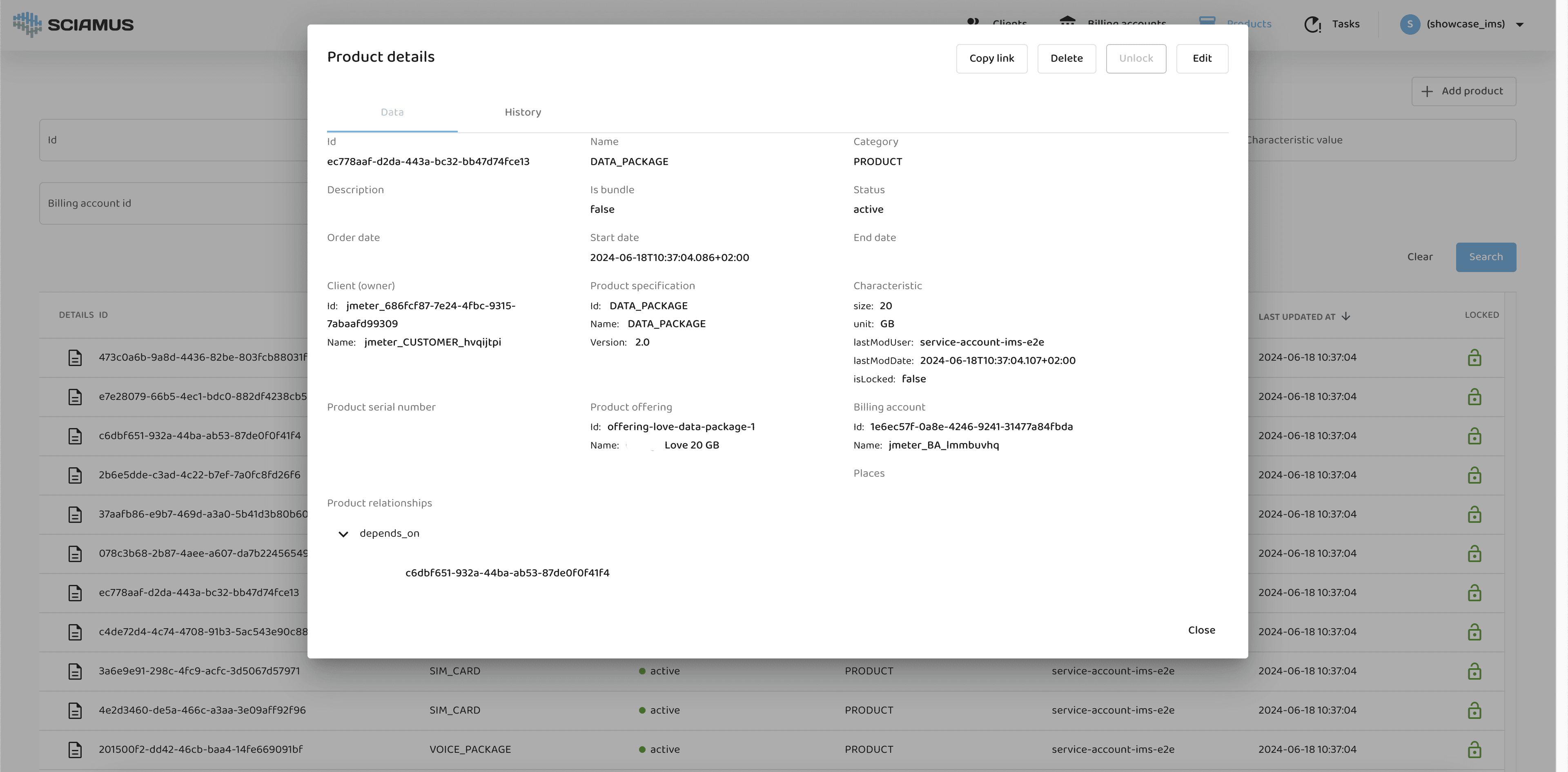
Product Details
Detailed view of product information, including history and current status. This window includes buttons to delete or edit the product. If the product is locked, an administrator has the ability to remove the lock.
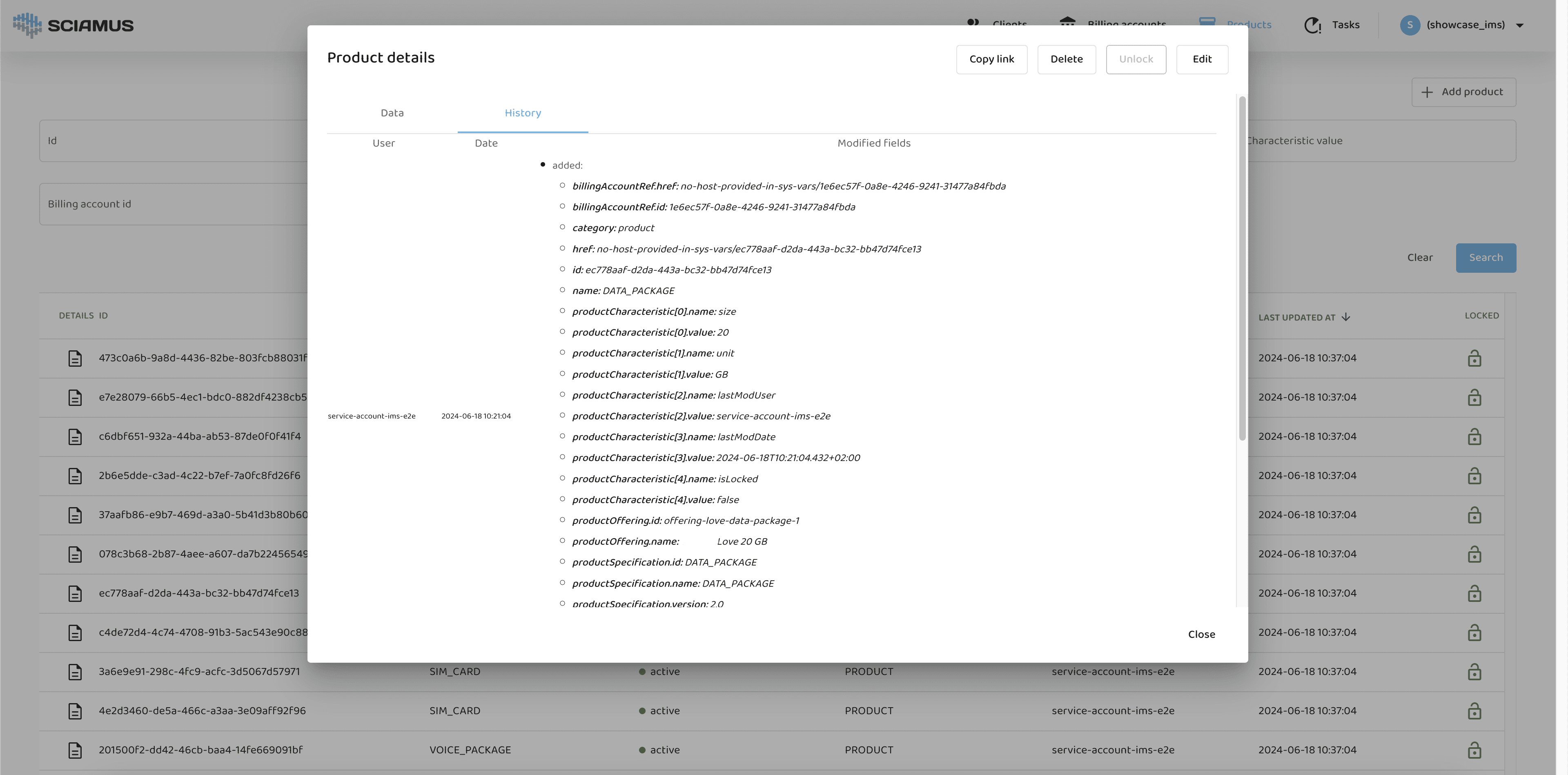
Product History
Detailed view of product history.
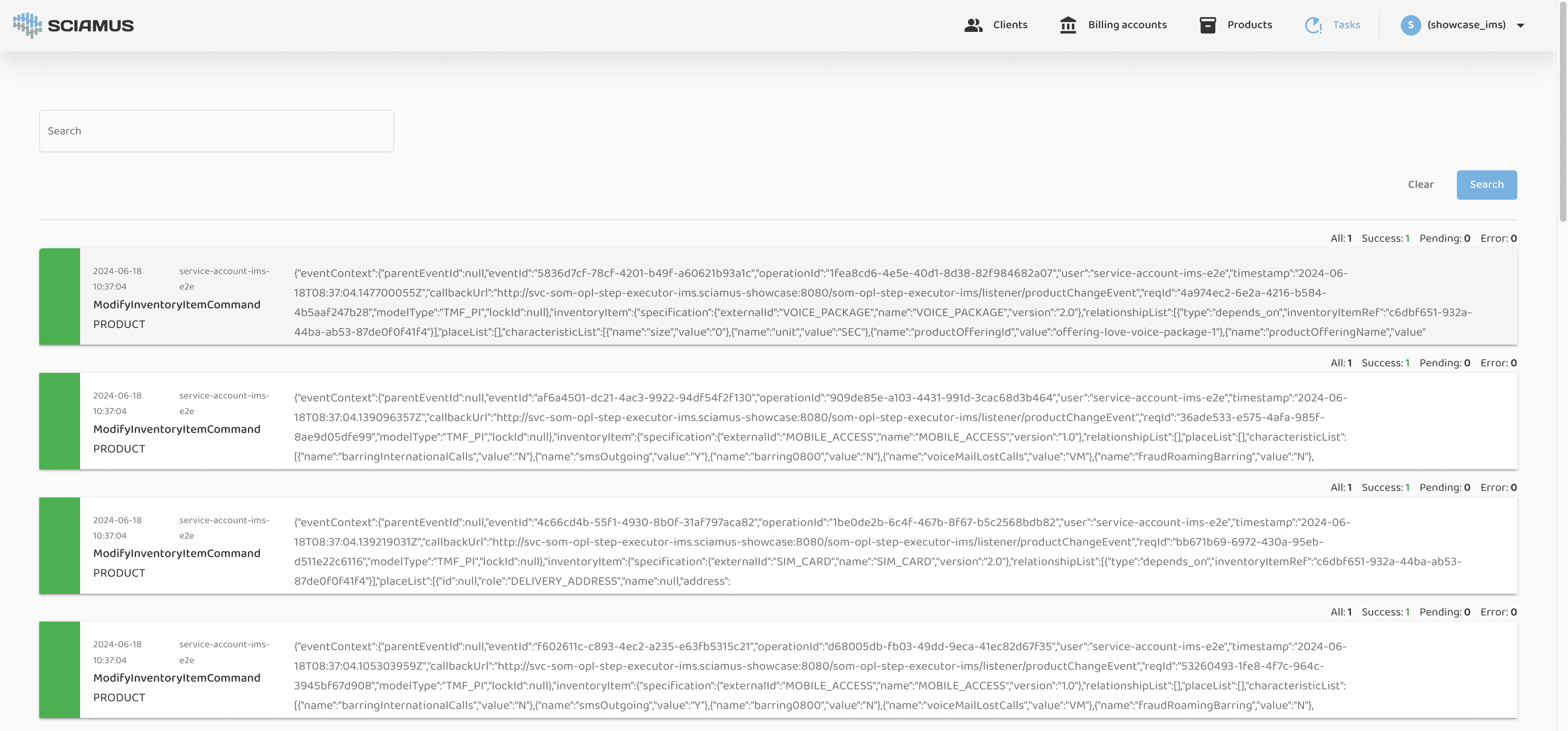
Tasks (Audit Logs)
Tasks View
This view allows users to browse all tasks (audit logs) in the system. Each task records the operation performed, the object it was performed on (product, client, billing account), the user who initiated the task, and whether it succeeded, failed, or is still ongoing.