Service Inventory
The Service Inventory (SI) interface of the IMS platform is specifically designed to manage and oversee all service-related operations. It provides a comprehensive set of tools and features that allow users to efficiently handle various aspects of service management, including adding new services, managing existing ones, and accessing detailed service information. The intuitive layout ensures that users can navigate through the platform with ease and perform their tasks effectively.
Menu Bar

- Clients This section lists all clients within the system, offering comprehensive filtering, sorting, and date range options for efficient navigation and management. The button to add a new client is available, opening the "Add Client" window.
- Services This section lists all services within the system, providing similar filtering, sorting, and date range options. The button to add a new service is available, opening the "Add Service" window.
- Tasks Users can view the list of tasks, each displaying the operation performed, the affected object (service, client), the user who initiated the task, and whether it was successful, ended in error, or is still in progress.
- User Profile Displays the username of the active user, with options to view roles, and safely logout from the system by clicking on the user icon.
Clients View
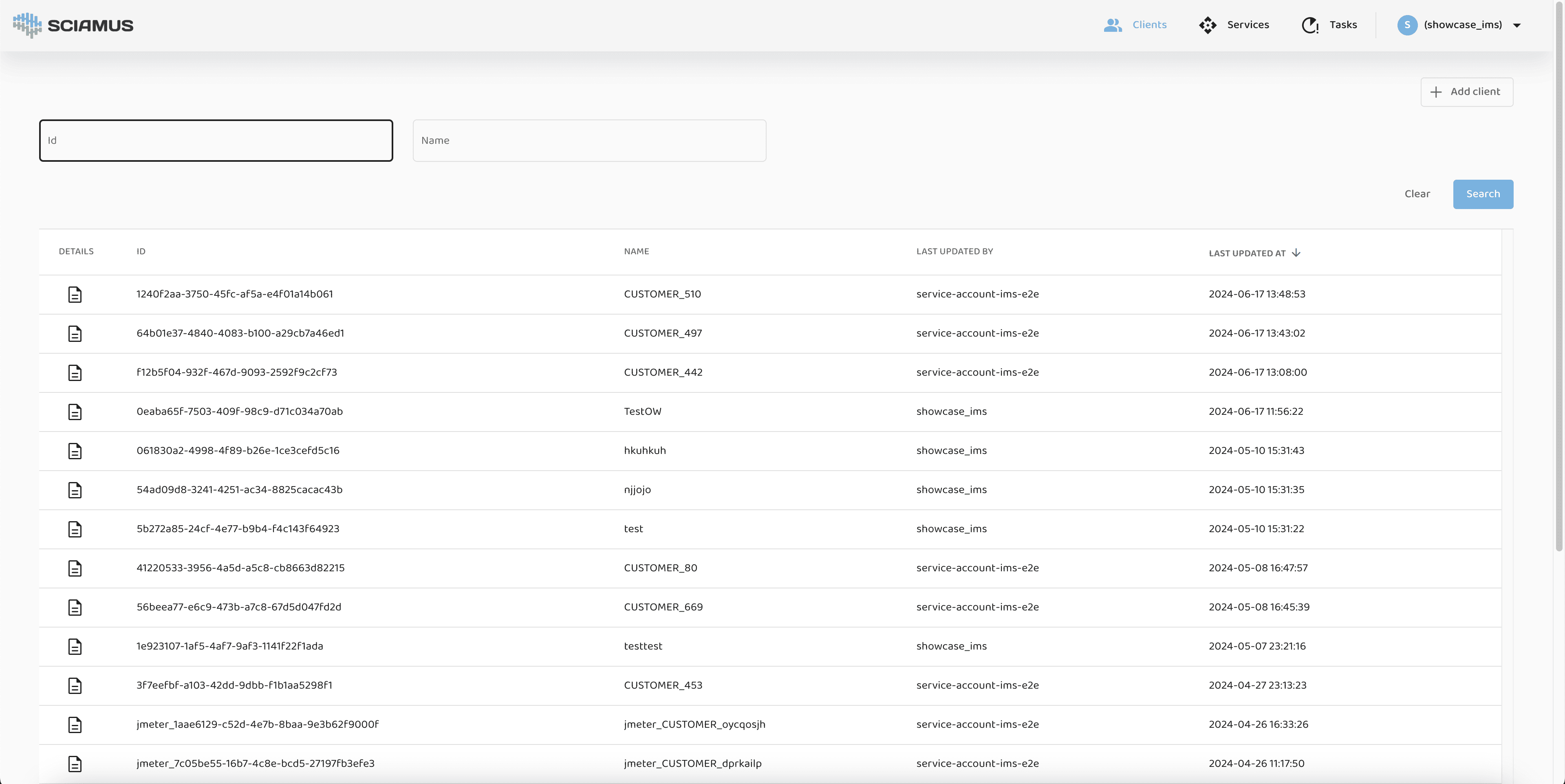
This view allows the user to browse all clients in the system irrespective of their status. Users can search and filter the list by selected criteria.
Search Pane
The pane contains search and filter controls. Users can search and filter the clients by typing data into the filtering text boxes or by selecting values from dropdowns. The following search criteria are supported: client id, name.
The search for clients matching the criteria is initiated after clicking the Search button (magnifying glass).
Results Table
The table header holds column names. The table body shows all clients matching search criteria. The items on the list can be sorted ascending (up arrow) or descending (down arrow) by clicking table header.
Table footer contains standard pagination controls allowing selection of items per page and backward and forward page navigation.
After clicking on a single row of the results table, the user is guided to a client details screen described further below.
Add Client
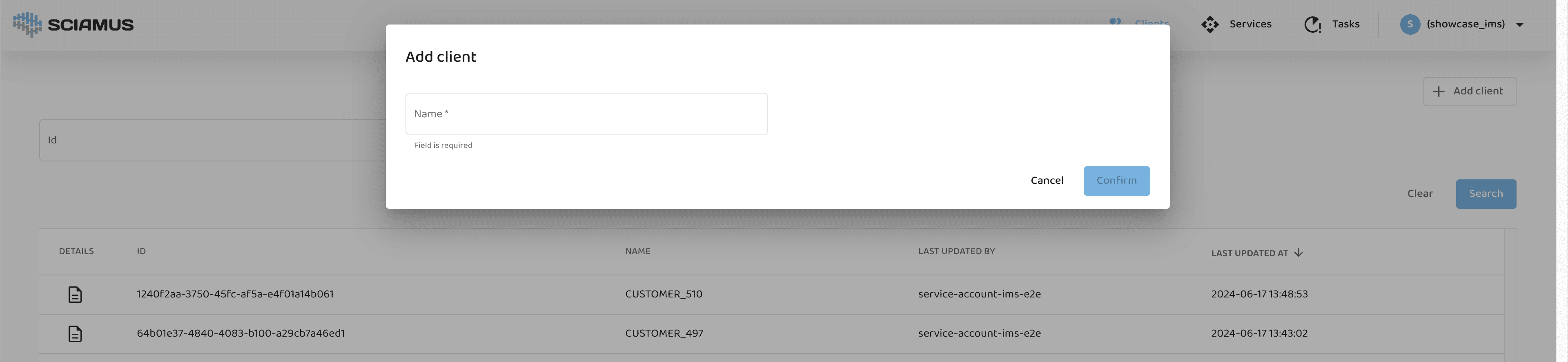
The "Add Client" window allows the user to input a new client's information. Required fields are marked with an asterisk (*).
Client Details
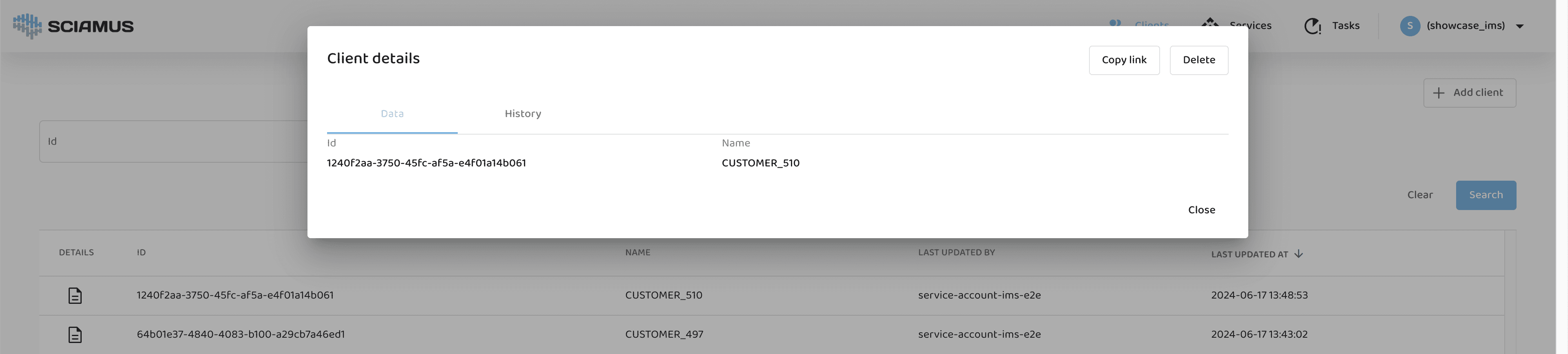
This view allows the user to review key information about a particular client. The view has two panes:
Data Pane
Displays client details such as client id and name. This pane includes buttons to copy the link, delete, and edit the client.
History Pane
Displays the modification history of the client. This pane shows who made changes and what those changes were.
Services View
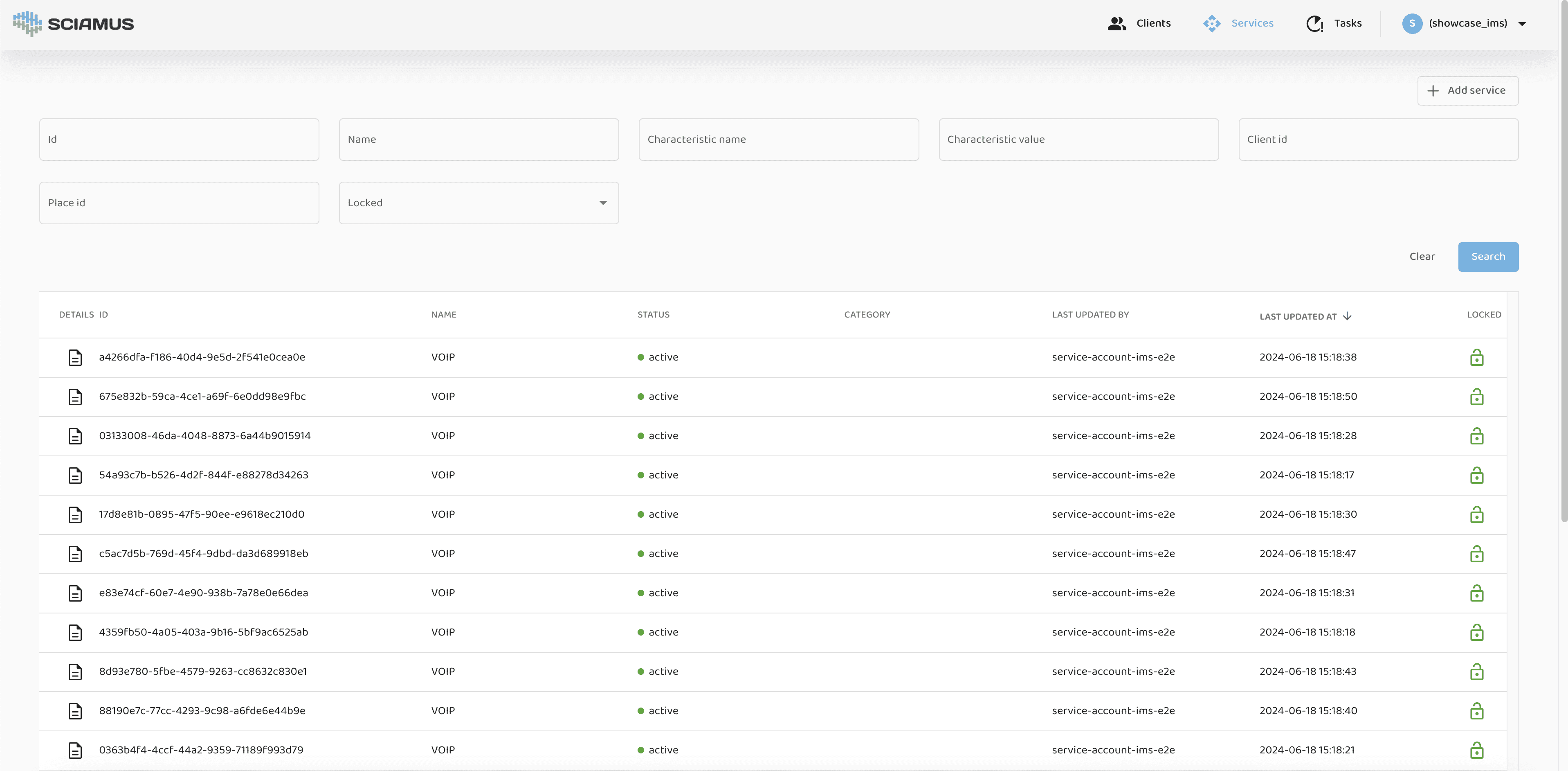
This view allows the user to browse all services in the system. Users can search and filter the list by selected criteria.
Search Pane
The pane contains search and filter controls. Users can search and filter the services by typing data into the filtering text boxes or by selecting values from dropdowns. The following search criteria are supported: service id, name, characteristic name, characteristic value, client id, place id, locked status.
The search for services matching the criteria is initiated after clicking the Search button (magnifying glass).
Results Table
The table header holds column names. The table body shows all services matching search criteria. The items on the list can be sorted ascending (up arrow) or descending (down arrow) by clicking table header.
Table footer contains standard pagination controls allowing selection of items per page and backward and forward page navigation.
After clicking on a single row of the results table, the user is guided to a service details screen described further below.
Add Service
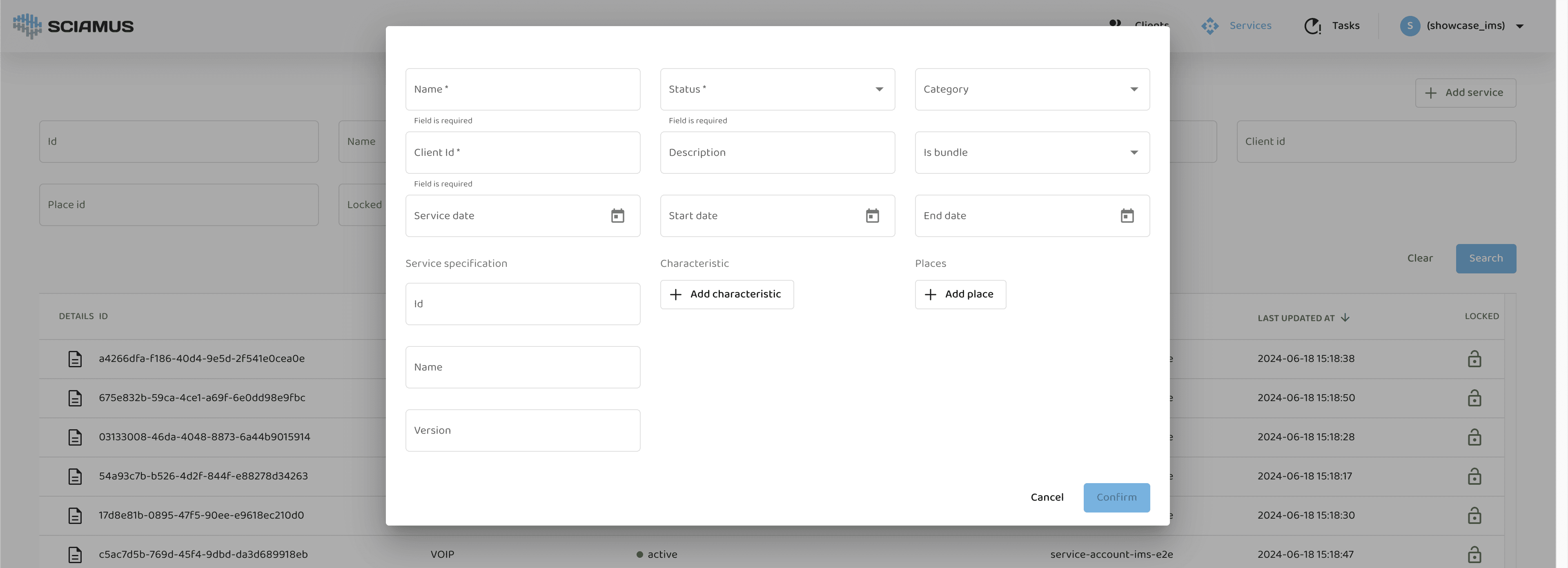
The "Add Service" window allows the user to input a new service's information. Required fields are marked with an asterisk (*).
Service Details
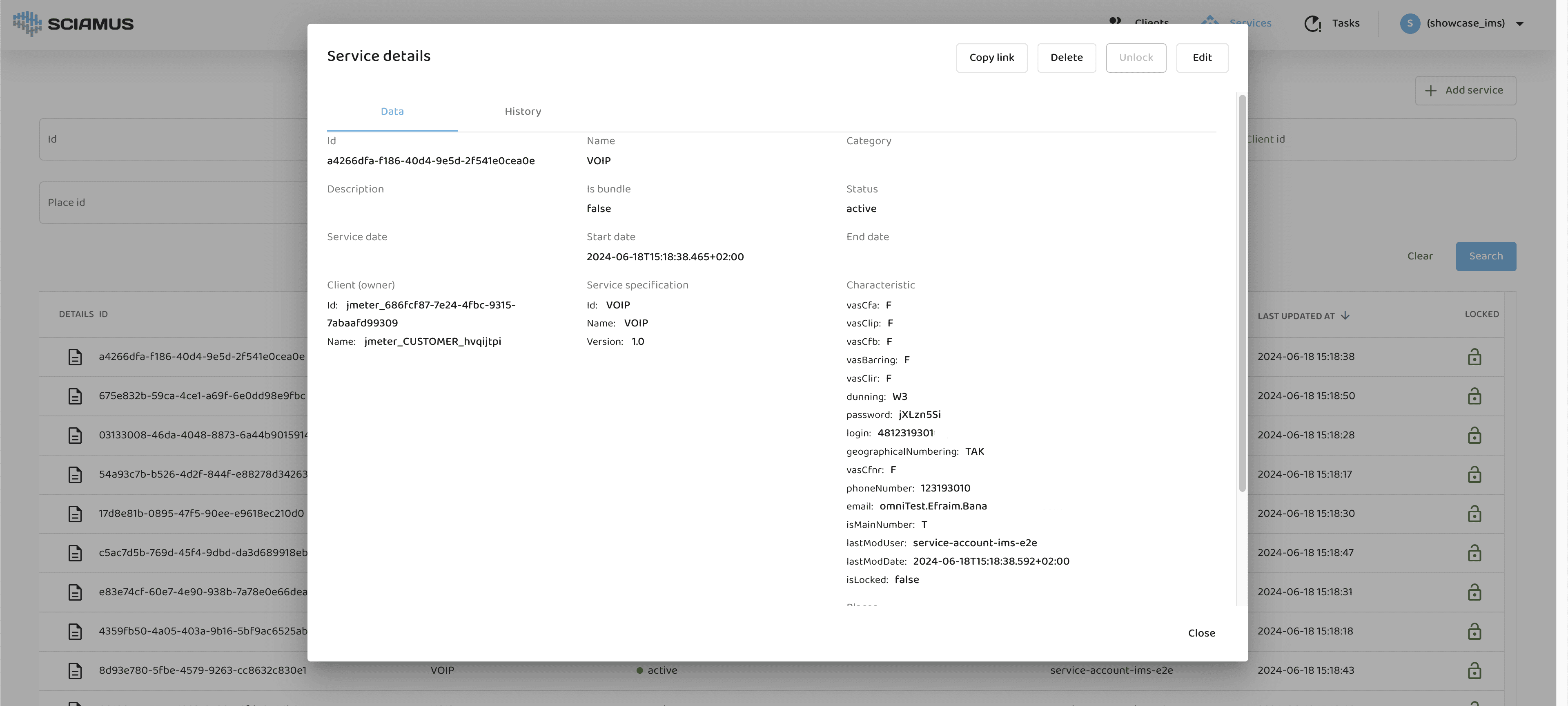
This view allows the user to review key information about a particular service. The view has two panes:
Data Pane
Displays service details such as service id, name, category, status, and associated client. This pane includes buttons to copy the link, delete, unlock, and edit the service.
History Pane
Displays the modification history of the service. This pane shows who made changes and what those changes were.
Tasks View
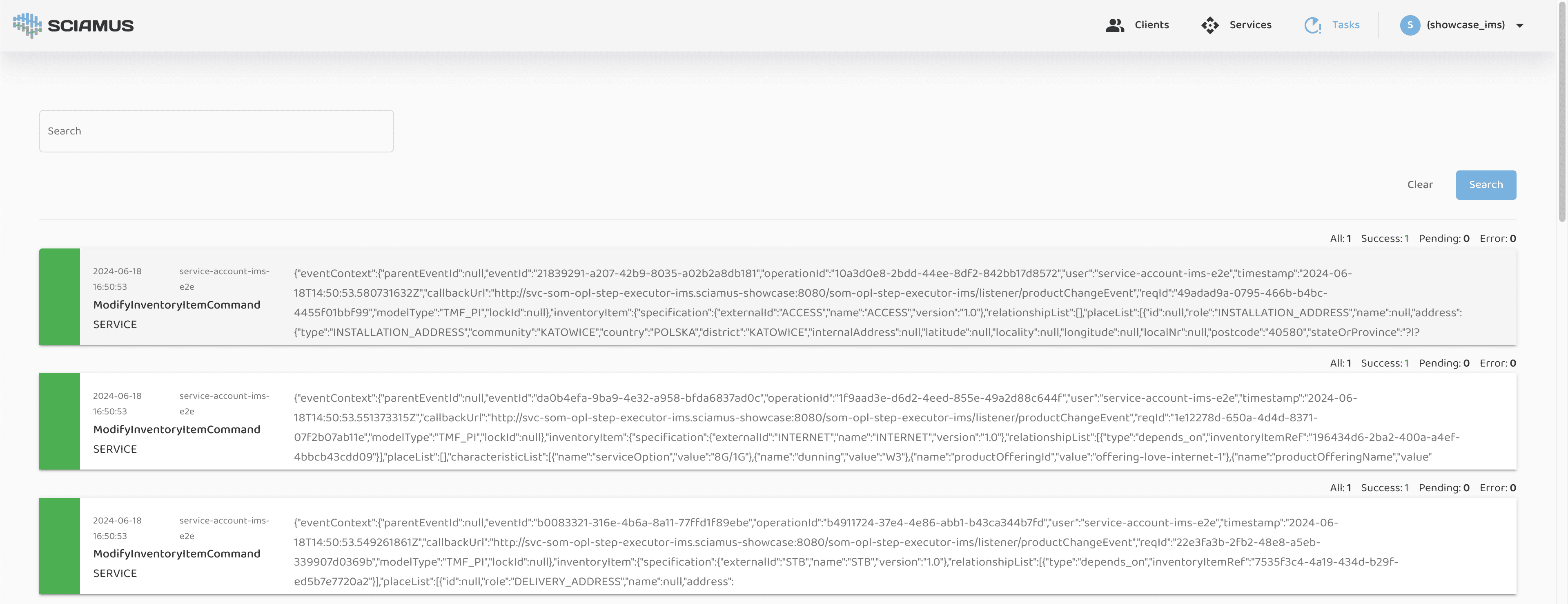
This view allows the user to see the list of tasks. Each task displays the operation performed, the affected object (service, client), the user who initiated the task, and whether it was successful, ended in error, or is still in progress.